RED LIGHT
SLEEP TIMER
Set up red-screen brightness, auto-off timing, background sounds, full-screen controls and Gentle Fade-Out from one app.
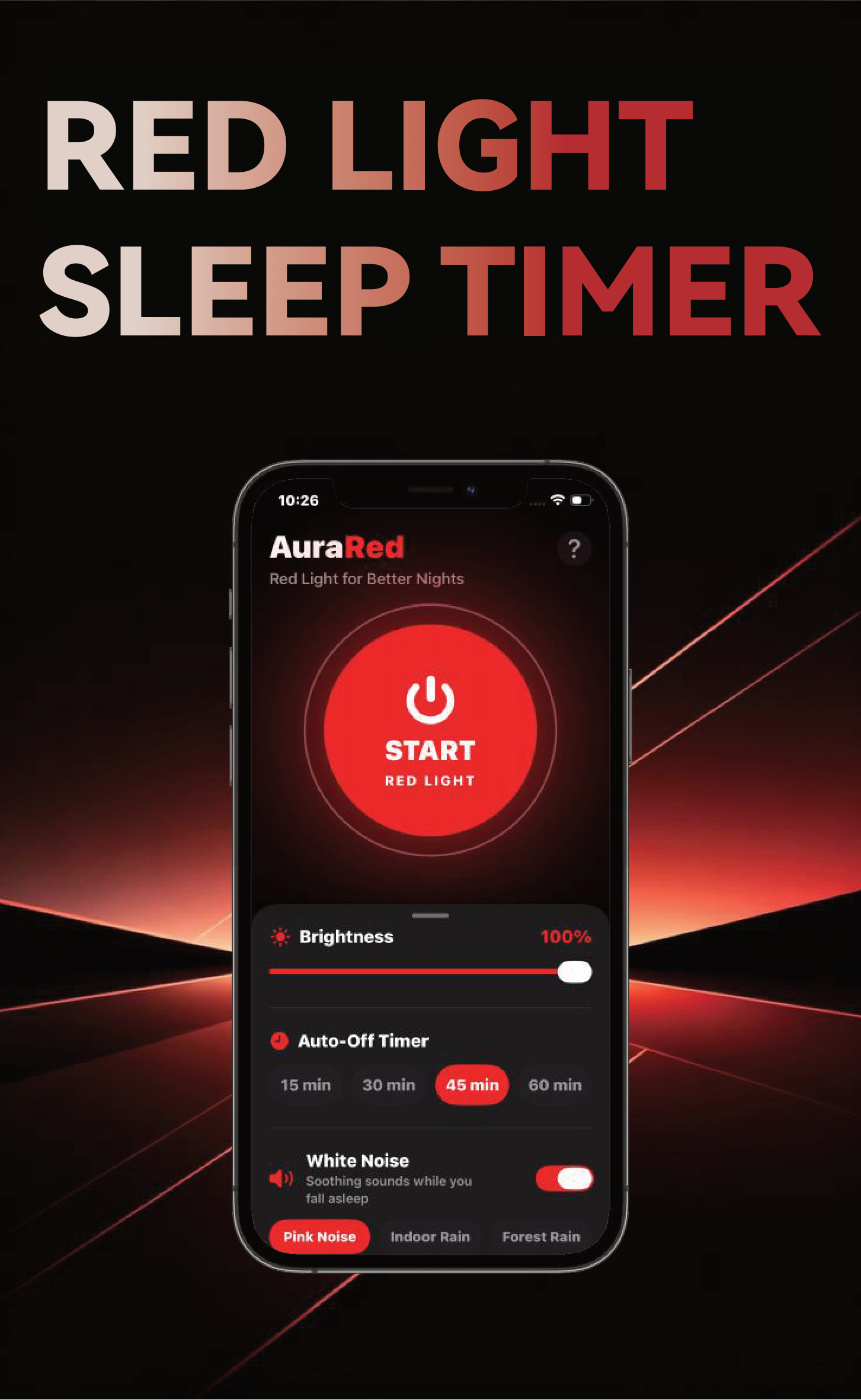
Mobile App Download & Installation
Your Amazon purchase includes the RLS01 phone stand only. The Red Light Sleep Timer app is obtained separately. One app purchase unlocks both Red Light Sleep Timer and Ferrofluid Visualizer. No additional in-app purchase is required.
Download the App
Device Support
Android devices are not supported.
Red Light Sleep Timer is the App Store name. AuraRed is the identifier shown inside the app.

Using the Phone Stand
Stable Surface
Place the stand on a stable, level surface such as a bedside table or desk.
Adjust the Angle
Adjust the viewing angle, then place your phone securely on the two support tabs.
Keep It Clear
Keep the phone and stand away from pillows, blankets, liquids and the edge of the table.
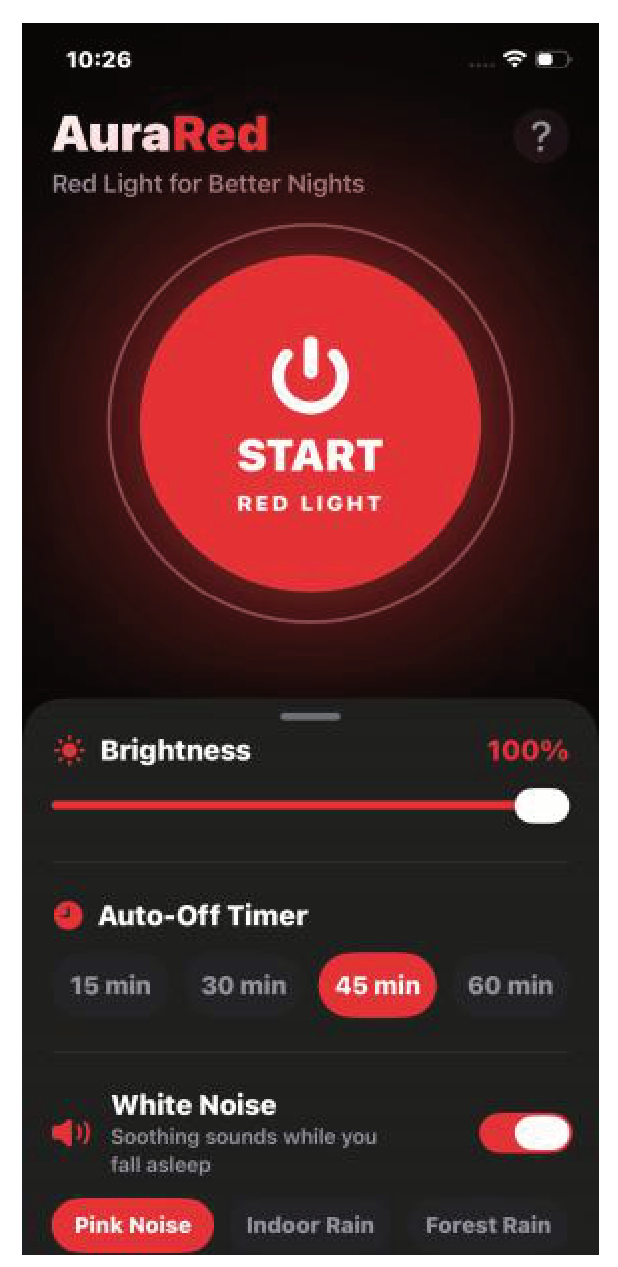
Main Control Panel
Start Red Light
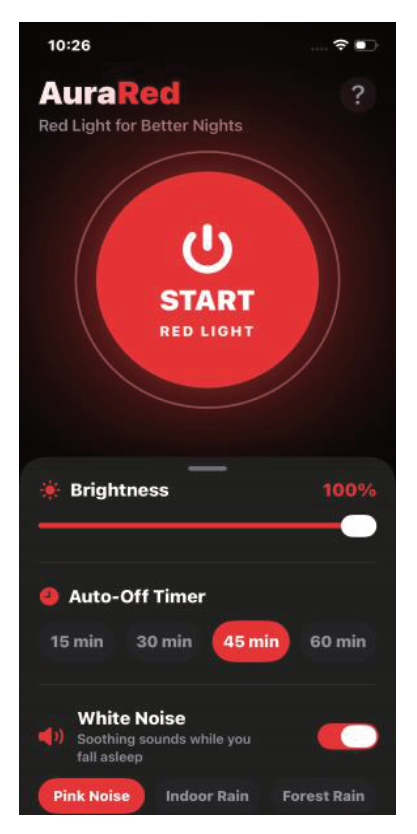
Tap START RED LIGHT to switch the display to full red-screen mode.
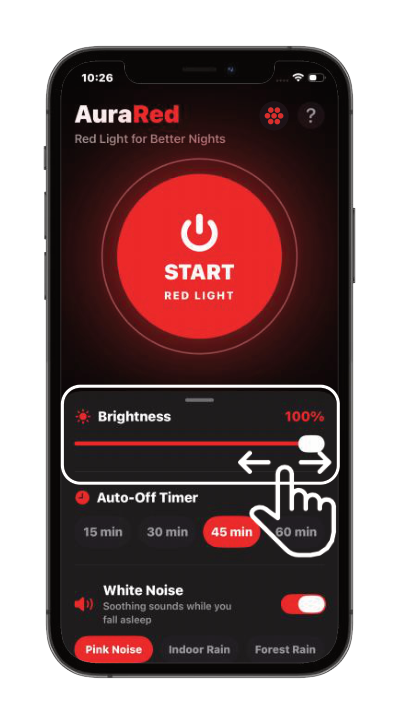
Brightness
Drag the Brightness slider to adjust the screen intensity from 1% to 100%.
For bedtime use, start between 10% and 20% and adjust to a comfortable level.
Brightness values shown in some control illustrations are for operation demonstration only.

Timer, Sounds & Gentle Fade-Out
Open the Options Menu
Swipe up on the bottom panel to open the options menu.

Auto-Off Timer
Choose one of four session lengths:
Background Sound
Use the White Noise switch to turn background sound on or off.
6 Built-In Sounds
Choose Pink Noise, Indoor Rain, Forest Rain, Ocean Waves, Crickets or Chimes.
Volume
Use the in-app Volume slider to adjust the app sound level from 0% to 100%.
This control does not change the phone system volume.
If you cannot hear sound, increase the phone system volume and check the device sound settings.
Gentle Fade-Out
Turn on the Gentle Fade-Out switch to enable this feature.
During the final 3 minutes of the active timer, screen brightness and app sound gradually decrease to zero.
When the timer ends, the red screen and background sound stop automatically.
App Behavior & Gesture Controls
After starting the red screen, you can control brightness, volume and session information without returning to the main dashboard.

Start
Tap START RED LIGHT to enter full-screen mode.

Tap
Tap the red screen to show the status overlay.

Full Screen
The status overlay fades automatically after use.
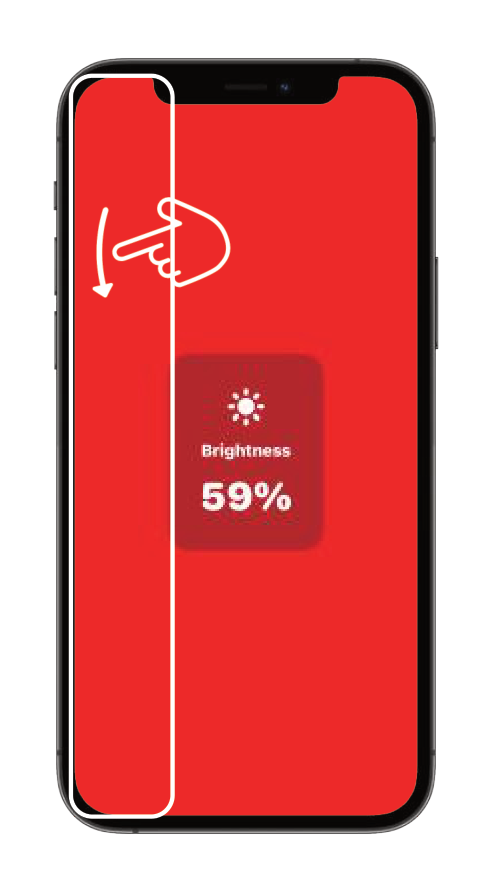
Swipe to Adjust Brightness
Swipe vertically anywhere on the left half of the screen to adjust the brightness level.
Swipe upward to increase brightness and downward to reduce it.

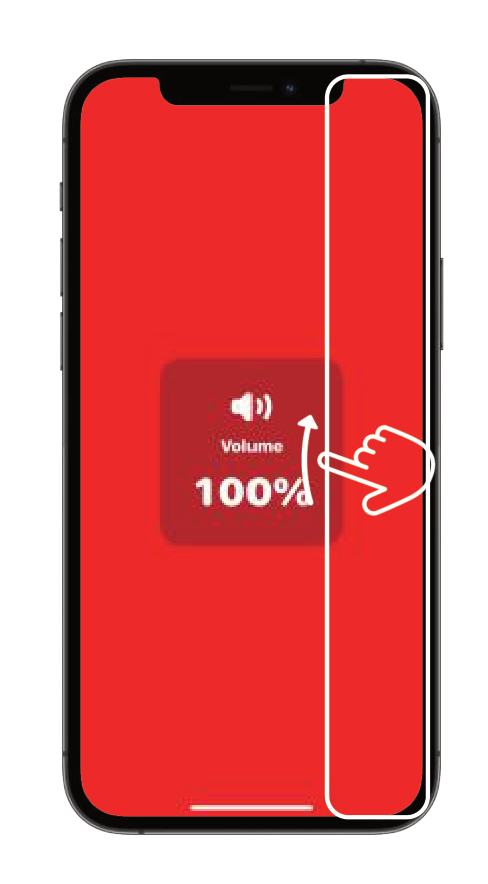
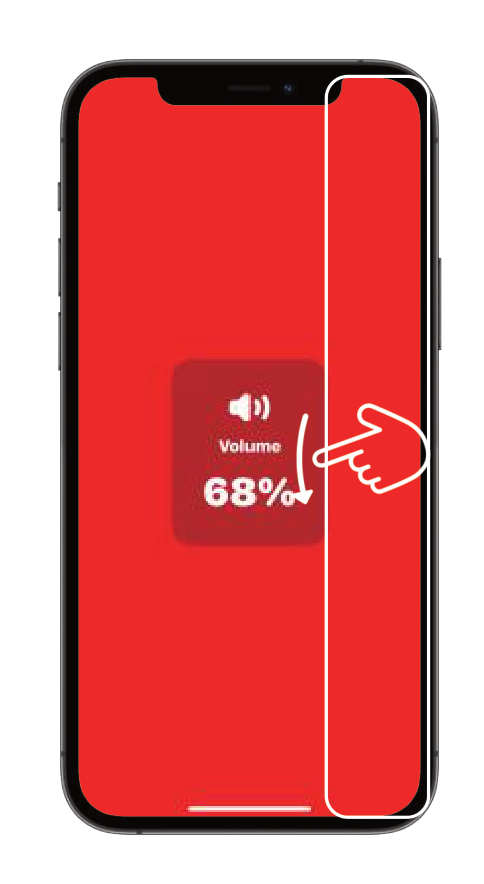
Swipe to Adjust Volume
Swipe vertically anywhere on the right half of the screen to adjust the app sound level.
Check Your Session at Any Time
Status Overlay
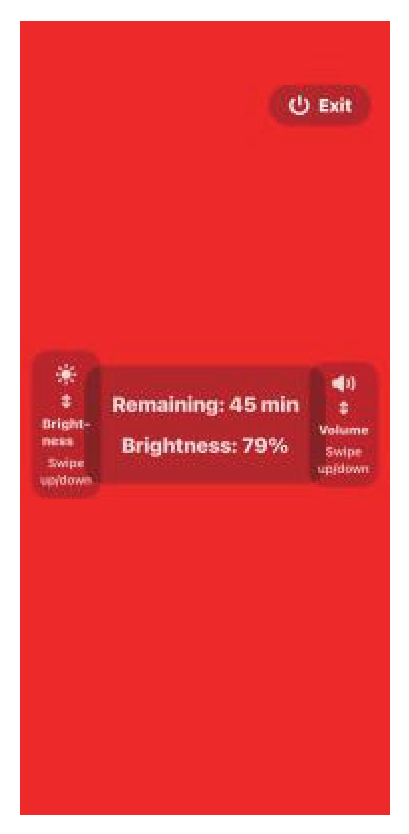
Tap the red screen to display the center status window.
The status window shows the remaining time and current brightness level.
The status overlay fades automatically after use.
Exit
Tap the Exit button in the top-right corner to stop the red screen and sound immediately.
The top-right position helps reduce accidental touches while using full-screen gestures.
System Information & Device Support
Tap the Help icon in the top-right corner to open the information menu.
Read the About section for the app description and current support information.
Screen color and brightness may vary by phone model, display settings and screen condition.
Disclaimers & Safety Guidelines
Please review these guidelines before using the app or phone stand.
Non-Medical Use
Use this app only as a general bedtime environment utility. It is not a certified medical device and is not intended to diagnose, treat, cure or prevent insomnia, sleep apnea or any other medical condition.
Screen Protection
Avoid using 100% brightness for long periods, especially on OLED displays. Use Auto-Off Timer and Gentle Fade-Out to limit unnecessary screen-on time.
Comfort & Eye Adaptation
Choose a comfortable low brightness level. Stop using the app if you experience eye discomfort, dizziness or other symptoms.
Safe Placement
Keep the phone and stand on a stable, ventilated surface. Do not place an operating or charging phone under a pillow, blanket or other material that may restrict heat dissipation.
Ferrofluid Visualizer
Red Light and Ferrofluid modes are both included with the app. No additional in-app purchase is required.
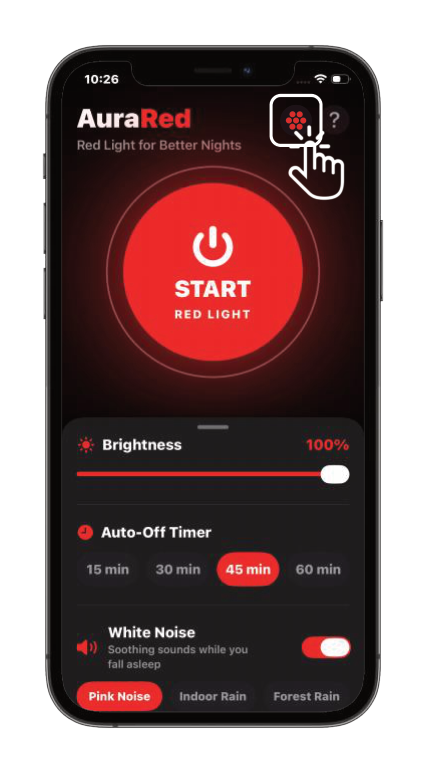
Open the Visualizer
Tap the ferrofluid icon at the top right of the main screen to open the Ferrofluid Visualizer.
The visualizer reacts to sound and touch. Change the background, material, glow and particles.
Tap X to return to Red Light Sleep Timer.
The first use of Sound Reaction may request microphone access. Audio is processed in real time on the device and is not recorded, stored or uploaded. If microphone access is denied, the visualizer can still be controlled by touch.

Full Ferrofluid Guide
Scan the QR code or open the link below.
 Open Ferrofluid Guide